If you watched the launch video from the SQLcl team, you were probably just as excited as I was to give it a whirl. So here’s a quick post showing what I did to get it to run and do a basic test.
(Note: A few big GIF’s in this post, so it might take a bit to load)
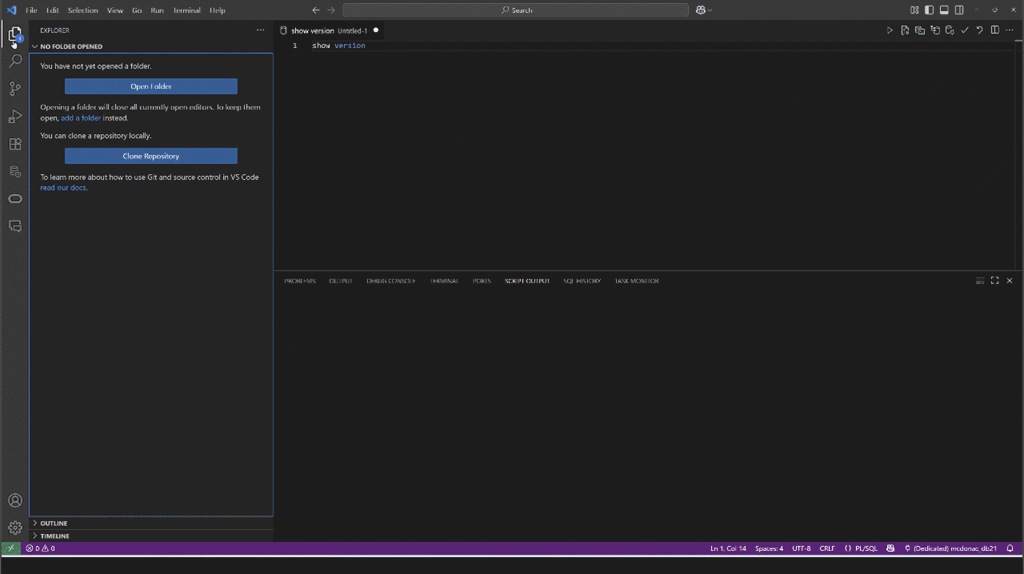
1) First make sure your VS Code is up to date, because it needs the latest/later versions to run Agent mode in Copilot.
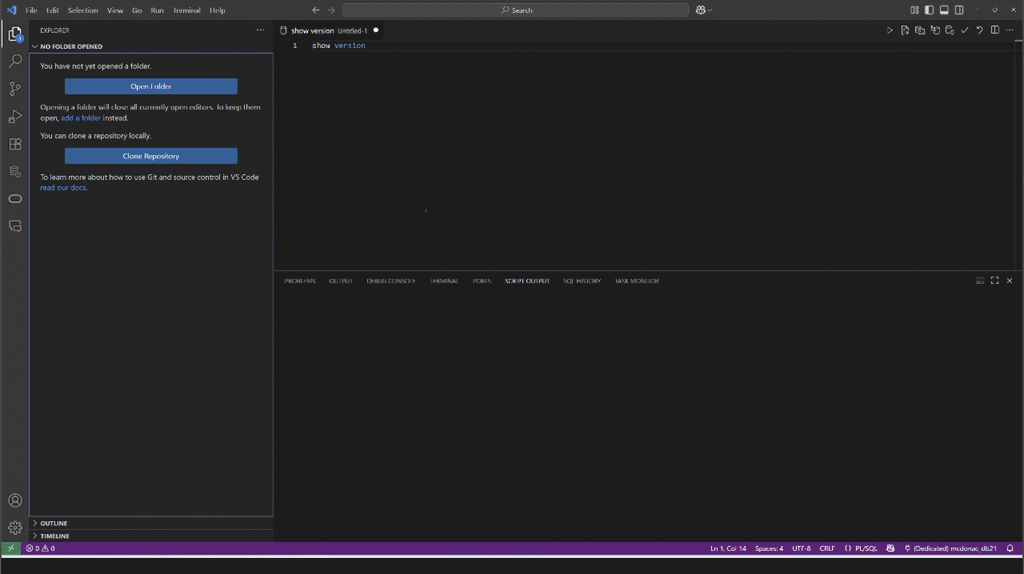
2) Now make sure you have the latest version of the SQL Developer extension (25.2 or later)
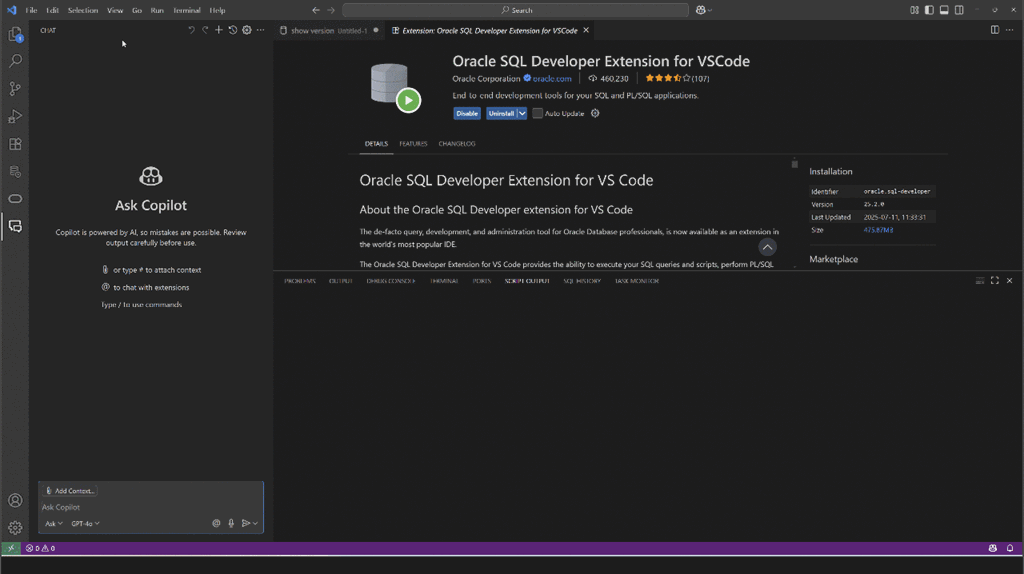
3) List the MCP servers to make sure you see SQLcl, and ensure that it is started and running.
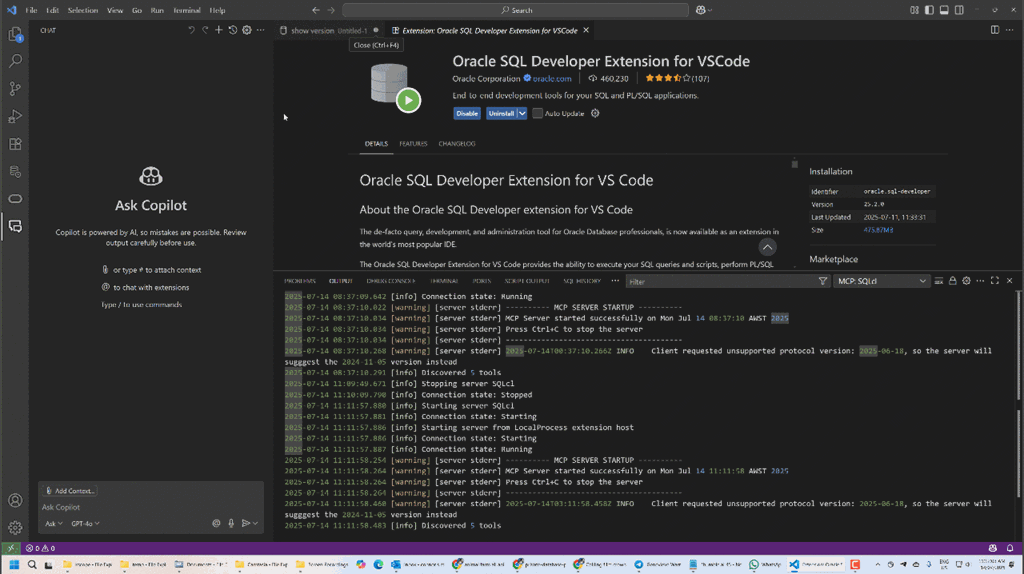
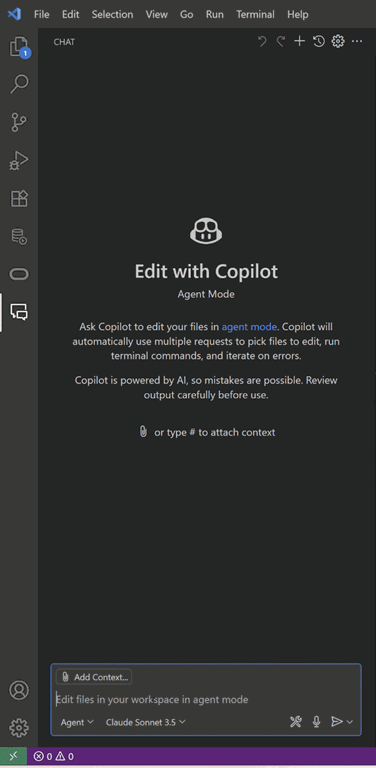
4) Set Copilot Chat to Agent mode and pick the model you want to use.
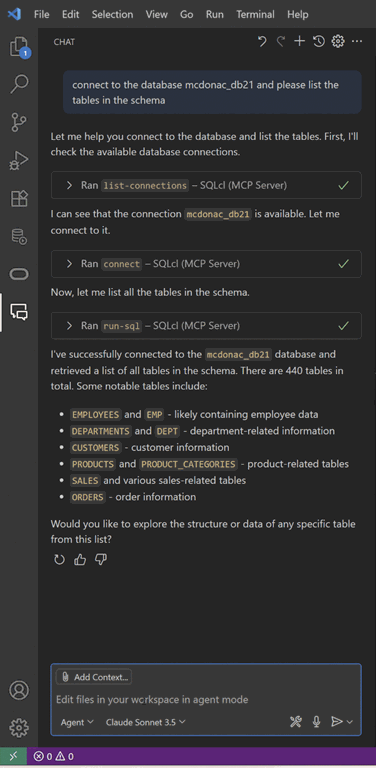
And that should be it! I checked what existing connections I had in SQLcl

and then used one of these to interact with the database via chat!
When I was done, I closed the connection…
… and sat there for a while with my mind blown 🙂
Footnote: Let’s be very clear what an MCP tool is from the perspective of you as an IT professional. If someone walked up to your desk at work and said: “Hey, you don’t know me, but I need to use the database for a bit. Can you give me some connection details and let me do whatever I want?”, you would naturally spit out your coffee and laugh at them. But that’s exactly what an MCP tool could be equivalent to. You’re handing a database connection over to a stranger and saying “Go for it!“. Hopefully you have read my recent post on vibe coding where I discuss the recent spate of vibe coded apps being riddled with security holes. Any MCP tool poses the same risk if you’re simply handing over the keys to your database schemas. Be sure to use some standard security principles when it comes to MCP tools:
- Don’t let the tool run any SQL statement before you review it,
- Don’t let the tool connect to an account with any kind of privilege that could damage your data/database,
- Think long and hard before ever letting the tool connect to a production database.
You do not want to be having an awkward conversation with your company CEO when you casually typed into the chat “Yeah, let’s drop this conversation”, and your MCP tool misinterpreted that into wiping out your company’s financials!





Leave a Reply